

The agent is available on Enterprise plans for anyone with access to your dashboard.
- Researches: Reads your existing documentation, any connected repositories, and relevant context.
- Plans: Creates a structured task list for complex documentation work.
- Writes: Generates or updates content following writing standards and best practices.
- Validates: Runs Mintlify CLI checks to ensure documentation builds correctly.
- Creates a PR: Opens a pull request with proposed changes for review.
What you can do with the agent
Use the agent to:- Write new content based on your prompts, pull requests, Slack threads, or file attachments.
- Update existing documentation for new features or API changes.
- Process and include images, diagrams, and other files from Slack attachments.
- Search and revise code examples and API references across your docs.
- Automate documentation maintenance with workflows.
- Answer questions about your docs and technical writing topics.
- Address code review feedback to maintain documentation quality.
- Capture knowledge from Slack conversations and pull requests before it gets lost.
- Navigate and coordinate changes across multiple files and directories efficiently.
Where you can use the agent
-
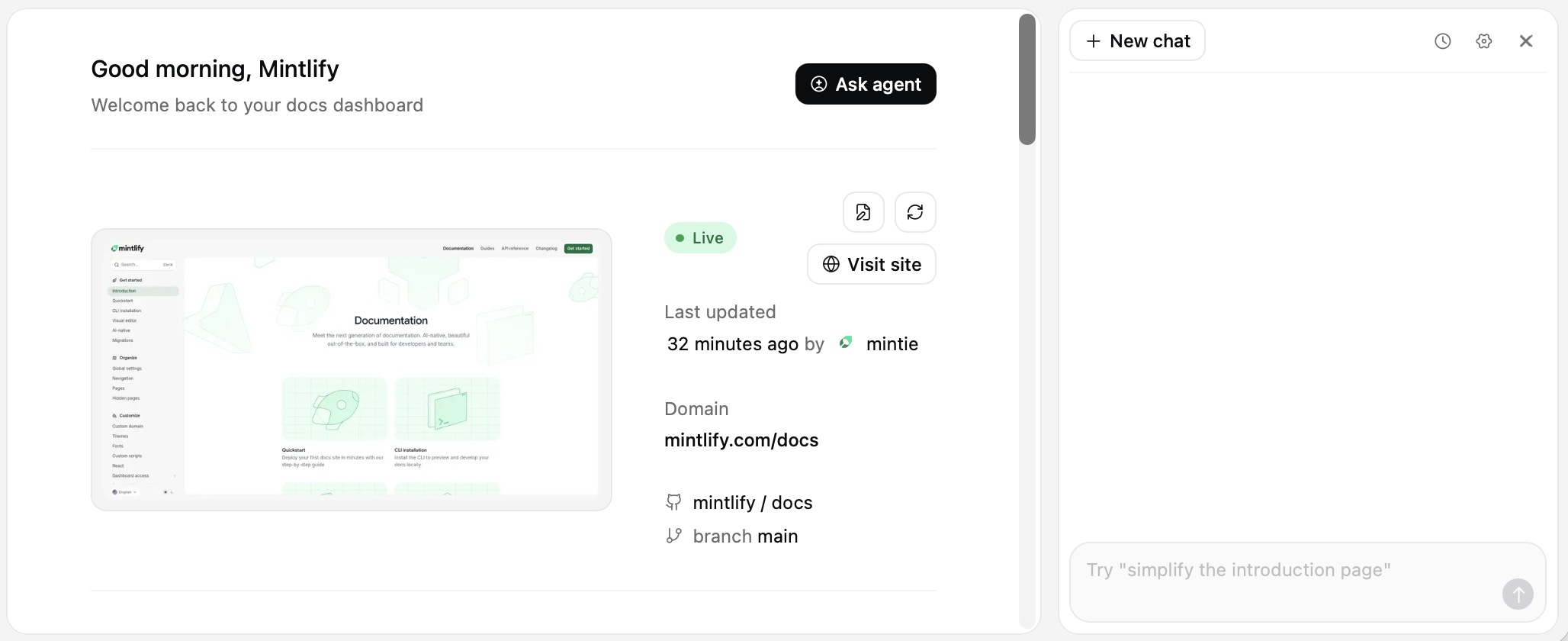
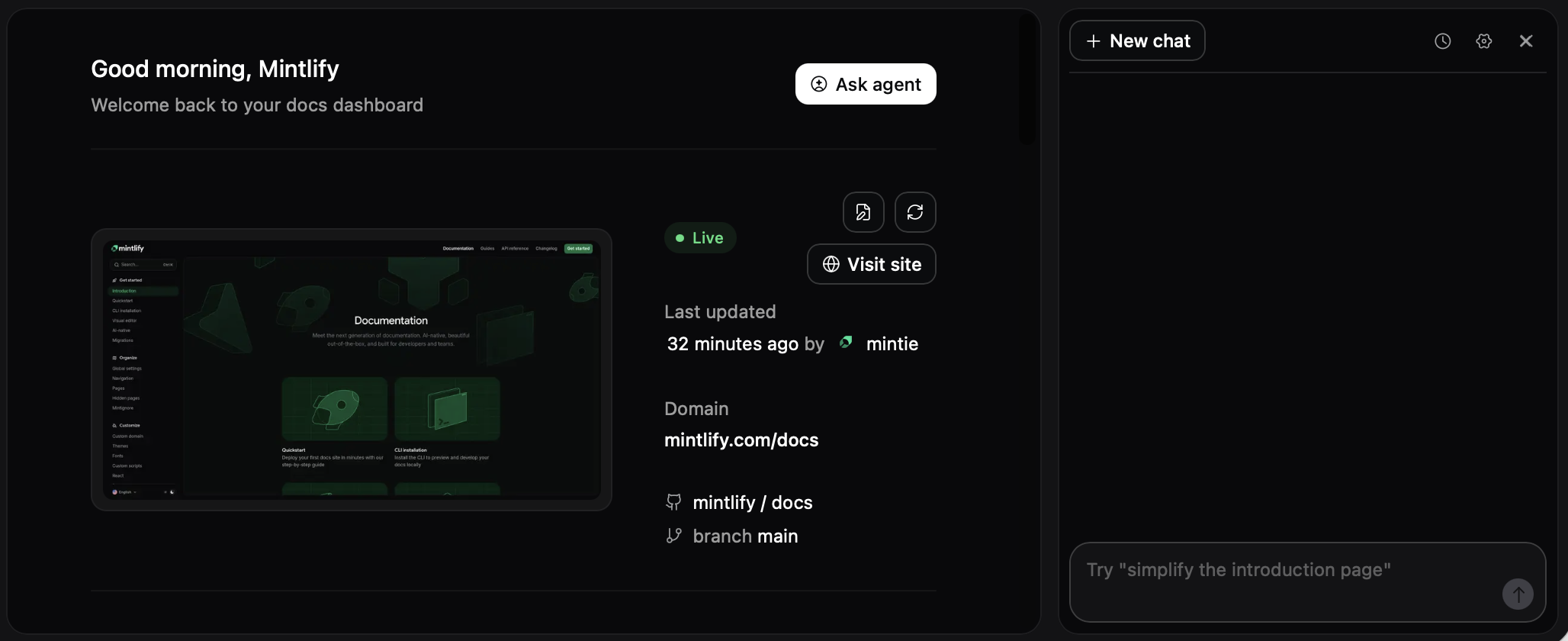
Dashboard: From any page in your dashboard, use the keyboard shortcut ⌘+I (macOS) or Ctrl+I (Windows/Linux) to open the agent panel. Or click Ask agent on the Overview page.
-
Slack: Add the agent to your Slack workspace and mention
@mintlifyin any channel. You can attach files and images directly to your messages for the agent to process. - API: Embed the agent in custom applications using the agent endpoints.
Connect your GitHub account
By default, the agent opens pull requests attributed to the Mintlify bot. To attribute pull requests to you, connect your GitHub account on the My profile page of the dashboard.Connect repositories as context
The agent can only access repositories that you connect through the Mintlify GitHub App. Configure which repositories the agent can access in the agent panel Settings or in the GitHub App settings.Next steps
Connect Slack
Add the agent to your Slack workspace.
Customize behavior
Configure the agent with an
AGENTS.md file.Write effective prompts
Get better results with focused prompts.
Automate with workflows
Automate recurring tasks and documentation maintenance with workflows.